Tag: How to

  • Blog: Best Free Editing Software

    People, it’s time to share some free stuff! And by free stuff, I mean my opinion and a lifetime of collected information, as that is really all I have to offer.

    I was chatting with one of my Australian friends in New Zealand, and he asked me what I thought might make for decent FREE editing software. I think that any self respecting screen junkie like you and I ought to be able to have an answer to that kind of a question.

    If you think that a “good” answer to that question is either iMovie or Windows Movie Maker, you may need professional help.

    As it stands, I don’t use the free stuff. I am media-professional that is a PC-based (*gasp*) Adobe CC user (*double gasp*). I know, I know. I just happen to like having a powerful machine for a fraction of the cost of an Apple equivalent, and I like the interconnectivity afforded by the suite of Adobe products. Nevertheless, there is some pretty powerful stuff that is available for free: and today I want to offer you the same two suggestions that I gave my friend.

    1. Blackmagic Design: DaVinci Resolve Lite.

    This is my number one suggestion by far. To be honest, Resolve has a reasonably steep learning curve for the beginner: you won’t create a masterpiece by simply playing around with it for an afternoon. With that being said, a masterpiece is possible if you’re truly interested in learning how to harness all the power that Resolve can offer.

    Despite being the Lite version, there are hardly any features missing compared to the Studio version. Sure it won’t do multi-camera editing or 3D, and you don’t have access to some minor features such as noise removal, but other than that, this is the same stuff the big boys use.

    1. Lightworks.

    Lightworks has been used to create Hollywood movies such as The Wolf of Wall Street, so it has some credibility. Like Resolve, there is a free and a pro edition, with the main difference being the output formats and the resolution (you are limited to 720p with the free version).

    The editing tools in Lightworks are powerful though, and even though both versions offer a limited range of special effects like transitions, TV programmes and Hollywood movies rarely use anything other than fade from/to black – so it shouldn’t be a problem. Aimed at professional video editors, it is a fascinating tool. It doesn’t do a lot, but what it does is pretty excellent.

    And that is it. I know that I’m not giving you easiest to use options here – but that was never the intent. The point was to show you that there are two incredibly powerful editing tools at our fingertips – and they will cost us nothing more than the time it will take to learn them. So long as we are willing to pay that price, the potential outcomes are amazing.
  • How To: Get the Hollywood Greenscreen Look (KINETIC)

    Alrighty, I have had my fun for a while – so today I want to come back to one of the reasons I started this blog in the first place… to share tools, tips, tricks, and generally correlate a whole bunch of resources for those who are still “waiting to be seen” (waiting2bscene… get it?) .

    One of the biggest tools around for amateur and professional alike is having the capacity to pull a key: and to do so well. In this excellent tutorial, director and cinematographer Matthew Rosen shares five of his tricks and secrets on shooting and compositing chroma keys. This one is definitely worth the look!

  • How To: The Inverse Square What? (Hazelton)

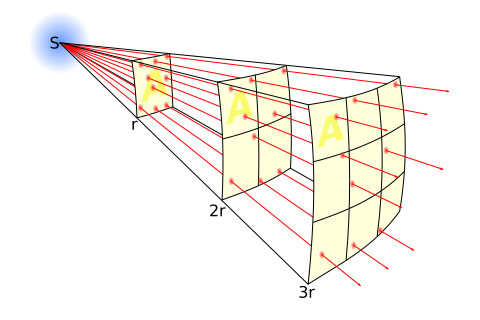
    To quote the second greatest font of Internet knowledge, Wikipedia, the physics term known as the inverse square law,  “is any physical law stating that a specified physical quantity or intensity is inversely proportional to the square of the distance from the source of that physical quantity. The fundamental cause for this can be understood as geometric dilution corresponding to point-source radiation into three-dimensional space.” (as demonstrated in the diagram… apparently).

    In photography, film, and even theatrical lighting – the inverse-square law has been used to determine the lighting “fall off” on a subject as it moves closer to or further from the light source. If you want to get into the physics and the mathematics of how to light well for photography and video, then please feel free to do so. As for me – however… well…

    If you are one of the less mathematically-minded types, and you just want a demystified breakdown of how to get light working for you – then Eve Hazelton and the Realm Pictures crew have you covered. I have posted about one of their lighting tutorials before… and I continue to like their style. I hope you will find today’s how-to just as useful.

  • How To: Stop Frame Animation (Stop-Motion/Claymation)

    So today’s video how-to one was of personal interest to me, as one of my international colleagues asked the question about whether we could try to pull together a claymation clip for one of our up-and-coming projects. I had no idea… and even though my production manager was reluctant, at least we were given the green light to explore the idea, which was great news!

    So how do you go about trying something you know nothing about? You learn about it. And if you have ever wondered how to do stop frame animation, then I hope this video will be as useful to you as it has been to me this week.

  • How To: Slate Like a Pro

    Continuing my series of resource links, today I want to share an excellent how to by the Rocket Jump Film School team.

    That moment when your first slate arrives can be pretty exciting. Suddenly you feel a little more professional, you know (well I did). But I had no idea whether there were some common practices when it came to slating. And if you were like me, then those first takes seemed more like an excuse to clap our slates at random intervals rather than being of practical use for the shoot.

    Thank goodness they are more than just a fun item to keep on set for the amusement of the crew though. And in this how to, RJFS break down some simple pointers to help you slate a little bit more like a pro. Enjoy!

  • How To: Blend Mode Colour Correction in Premiere Pro (Lynda)

    Continuing my series of resource links, today I want to share a great little Adobe Premiere Pro tutorial by the ever resource-driven team at Lynda.

    If you make videos, then you ought to know that good videos have been treated in order to make the colour consistent. Just think – how many Hollywood blockbusters would you have avoided if the production companies hadn’t entrusted a colour-grading specialist to overlay the ubiquitous (and film critic nightmare) “orange and teal” colour system? More than a few I would wager!

    Case in Point…

    Despite Hollywood’s apparent reluctance to stray too far afield of their orange and teal ideal over the last 20 years or so (though to be fair, there have been other stereotyped colour visuals employed – for example, stark, or bleached white scenes depicting the future… warm orange scenes depicting the inside of a medieval inn… blues and/or greens employed to depict science fiction… you get the picture) – we shouldn’t throw the proverbial baby out with the bathwater. Colour grading ought to be an indispensable element of the video-maker’s production schedule. But what if you don’t have the budget to hire a colour grader? What if, like me, you are more an indie-shooter that quite often produces the work from top-to-tail in a guerilla fashion? Are we to be left at the mercy of the raw footage? In short, no… there are tips and tricks that we can employ to help us smooth out our work too. And this video is one such tip.

    Adobe’s Premiere Pro can afford us with a unique – and visually-pleasing – result by employing some basic blending and adjustment layer functions. And as noted by the No Film School post on this same clip, author “Ashley Kennedy recently shared some extremely helpful tips for using blend modes to correct exposure and contrast issues, as well as some tips for using blend modes to create color casts.”

    Is it perfect? No. It may not even be ideal. But when you are on your own, or are in a seriously bad way with your footage – then this might be just the kind of trick that can help you to salvage something out of the situation. I hope you enjoy.

  • How To: The Five Pillars of Exposure

    Continuing my series of resource links, today I want to share an excellent little tutorial on how to get the most out of exposure. Seriously. You have no idea how much I want you to see this video. This is one of those kind of clips… the potentially life altering ones!

    Okay, that was a bit OTT. Still – I love this clip.

    The team at Realm Pictures have taken what is often a long-winded subject (exposure and lighting), and they have cleverly condensed it into a nice neat package of just over 6 minutes. Whether you are just starting – or you just need a reference guide reminder on how to best use exposure in your videography – then this gem is definitely what you will want to come back to. Please enjoy responsibly. 🙂

  • How To: Colouring Compliments in Photoshop

    Continuing my series of resource links, today I want to share an excellent tute that goes through some mid-level colour correction using Photoshop.

    Now why on earth would I want to share a Photoshop tutorial on a blog that has to do with videography and the like? The simple reason is that I like the presenter. That and the fact that understanding how to utilise complimentary colours is one of those fundamental techniques we all ought to be aware of, regardless of whether the images we work with are still or moving.

    Those who have learned their colour-jiu-jitsu are generally the ones that have been able to progress from a mobile phone kind of photographer/videographer that needs Instagram filters to help prop up their shots. Take it from me – tutes like this one are a great way of building up your skill set in this area. I hope you enjoy it.

  • How To: A Comprehensive Cheat Sheet for Adobe

    Continuing my series of resource links, today I want to share an excellent infographic. For those of us who are part of the Adobe Universe, you will know that short-cuts have a funny way of increasing productivity, right? If only there was a way to easily find and/or remember what some of the really important ones were! Oh wait – there is!

    Thanks to the team at Set Up A Blog Today, we now have access to a comprehensive cheat sheet that outlines a range of the important short-cuts to a host of our favourite Adobe products: Illustrator, Photoshop, InDesign, FireWorks, Flash, Premiere Pro, and After Effects!

    Need some of that action? Get it right here. And as a bonus tid-bit – scroll down the the bottom of the post to get access to the PDF versions of the individual cheat sheets.

  • Video Article: Understanding Jump Cuts

    Continuing my series of resource links, today I want to share a video I stumbled on a little while ago. Coming from Vimeo’s Riley Hooper, it offers a pretty concise explanation of the technique known as a jump cut. Even if you have never heard the term before, I can guarantee that you all know what a jump cut looks like… though picking up pace in more and more places, it is a ubiquitous transition amongst the most popular of YouTube’s vloggers. As someone cleverly observed, “Anything other than a jump cut would create a slower experience that would leave you less stimulated and thus more likely to click away.”1

    So, jump right in. 🙂